How to Optimize Your Google Business Profile for More Calls
A 7-step guide to optimizing your Google Business Profile for more calls, direction requests and map visibility, based on Google's own guidelines.

To optimize your Google Business Profile, start by verifying it and choosing the most accurate primary category. Then complete every field and keep your name, address and phone identical everywhere. Add real photos and services, earn and answer reviews, and track the calls and direction requests that follow. Google states that local results rank on three factors: relevance, distance and prominence, and every step below targets at least one of them.
Here's the thing: most profiles fail on basics, not on secret tactics. A wrong category, missing hours or a mismatched phone number cost calls every day. This guide ties each step to a business result and covers the mistakes that get profiles suspended.
The 7 steps at a glance:
- Claim, verify and choose the right primary category, and set up a storefront or service area correctly.
- Fill in every field customers actually read: hours, description, attributes and contact options.
- Make your name, address and phone match your website and directory listings exactly.
- Add services, products and real photos of your work, team and premises.
- Ask every customer for a review and reply to all of them, good and bad.
- Connect the profile to matching pages on your website so Google and AI assistants describe you correctly.
- Track calls, direction requests, website clicks and map rankings every month.
Key Takeaways
- Category comes first. The primary category tells Google which searches your profile matches; Google advises using as few categories as possible.
- Service area businesses hide the address. Google's guidelines say businesses that don't serve customers on site should hide their address and list up to 20 service areas.
- NAP must match everywhere. Identical name, address and phone on your profile, website and directories confirm your business to Google and AI assistants.
- Ask every customer for reviews. Google counts review count and score in local ranking, but bans review gating and incentivized reviews.
- Measure actions, not just rank. Track calls, direction requests and website clicks monthly against a baseline, and check map rankings across your service area.
Step 1: Claim, Verify and Choose the Right Primary Category (Storefront or Service Area)
Claim and verify your profile first, because unverified listings can be edited by others and rank poorly. Google offers several verification methods, including phone, email, video and postcard, and the options shown depend on your business type and location.
Once verified, choose your primary category. This single field tells Google which searches your business deserves to appear for. Google's category guidance asks you to pick the category that describes your business as a whole, not every service you sell.
Q: How many categories should I add to Google Business Profile?
A: Google recommends using as few categories as possible to describe your core business, with one primary category and only closely related additional ones.
The category also shapes how your listing looks in the local pack, the block of map results shown above regular listings. If you want a primer on that layout, see how search results pages work.
Storefront or service area business
This choice matters more than most owners realize. A storefront business serves customers at its address, such as a salon, dental clinic or restaurant. It should show its address and accurate opening hours.
A service area business travels to customers, such as a plumber, cleaner or mobile mechanic. Google's guidelines for representing your business say businesses that don't serve customers at their address should hide it and list service areas instead. According to the same guidelines, your service area should not extend beyond roughly two hours of driving time from where the business is based.
Google's service area help page lets you list up to 20 service areas by city, postal code or region. Pick the towns you genuinely serve and want work from. Hybrid businesses that serve customers both on site and on the road can show an address and a service area together.
Step 2: Fill In Every Field Customers Actually Read
Complete every field a customer uses to decide whether to call. Google's own ranking advice says complete and accurate information makes a business more likely to match relevant searches.
Focus on the fields that drive action:
- Phone number: use a number that a person answers during listed hours. Google's guidelines prefer a local number over a central call center where possible.
- Hours and special hours: set holiday and seasonal hours ahead of time. Customers who arrive at a closed door rarely give a second chance.
- Description: explain what you do, who you serve and what makes you different, in plain language. Skip links, promotions and keyword lists.
- Attributes: add options such as wheelchair accessibility, online appointments or on-site services. They answer pre-call questions in one glance.
- Opening date and website: both add context and make the listing look established.
Pro Tip: Read your profile on a phone as a stranger would. If the first screen doesn't show what you do, where you work and how to reach you, rewrite the description and check the category before adding anything else.
Step 3: Make Your Name, Address and Phone Match Your Website
Use the exact same business name, address and phone number on your profile, website, directories and social pages. Search engines compare these details across the web to confirm a business is real and where it operates.
Q: What does NAP consistency mean in local SEO?
A: NAP stands for name, address and phone number. NAP consistency means those three details match exactly on Google Business Profile, your website and directories such as Yelp, Apple Maps and Bing Places.
Small differences add up. "Suite 4" on one site and "Ste. 4" on another is usually harmless, but an old phone number or a former address creates conflicting signals. Those conflicts also send real customers to the wrong place.
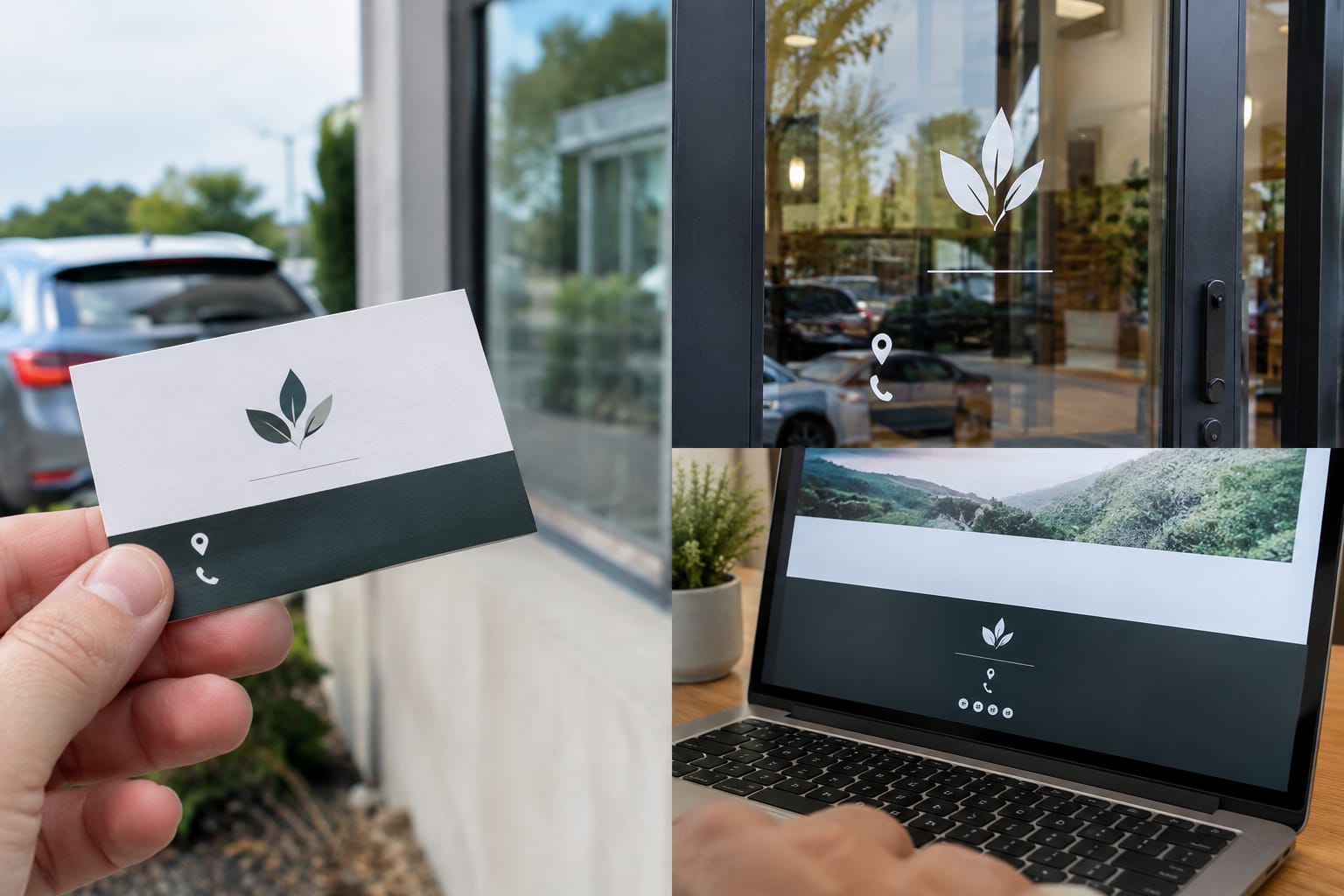
Start with a simple audit. Search your business name and phone number, then list every directory that shows your business. Correct outdated entries, remove duplicates and record your official NAP in one document for anyone who edits listings.
Your name deserves special care. Google's guidelines for representing your business require the name to match your real-world branding, such as your signage and stationery. Adding a city or service keyword to the name is a policy violation, not an optimization.
Step 4: Add Services, Products and Real Photos
List each service and product you want calls for, then add genuine photos of your work, team and premises. These sections help Google match your profile to specific searches and help customers trust what they see.
The Services section is especially useful for businesses with a broad category. A roofer can list repairs, inspections and gutter work separately, each with a short description. Retailers and restaurants can use Products or menus to show what they actually sell.
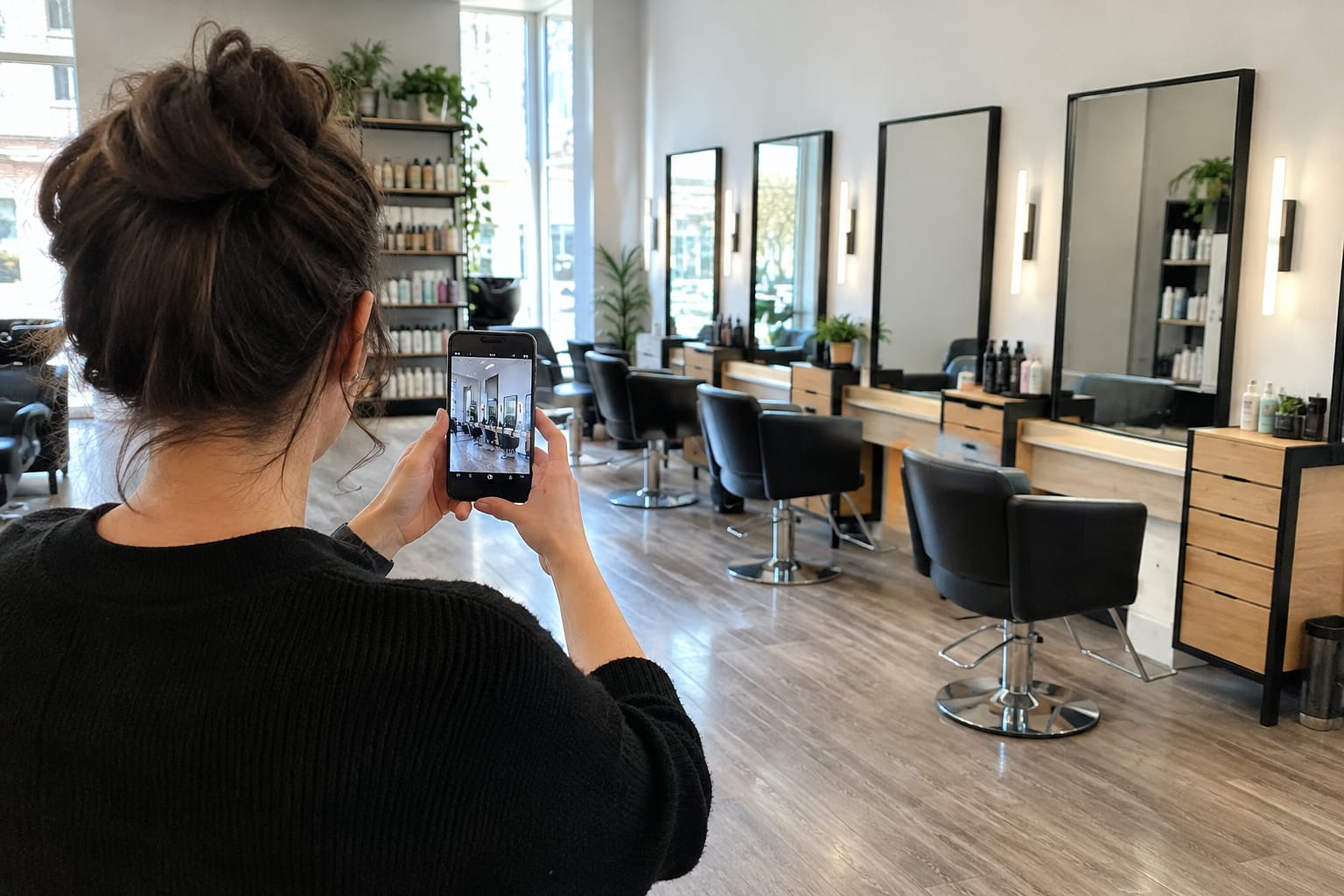
Photos work as proof. Customers judge a clinic, salon or contractor by what the premises and finished work look like. Google's photo help page lists the accepted formats, file sizes and minimum resolution, so check it before uploading.
Good photo coverage usually includes:
- The exterior, so arriving customers recognize the building or vehicle
- The interior or work area, cleaned and well lit
- Your team at work, with their permission
- Before-and-after results for trades and services
Skip stock images and heavily filtered shots. They look generic and undermine the trust photos are meant to build.
Google Business Profile posts
Google Business Profile posts let you share offers, events and updates directly on your listing. Regular posts show that the business is active and give customers a reason to call now. A steady cadence, such as one useful post per week, beats a burst of activity followed by months of silence.
Step 5: Get and Respond to Reviews the Right Way
Ask every customer for a review, and reply to every review you receive. Google lists review count and score as factors in local ranking, and reviews are often the deciding factor when a customer compares two businesses.
The key word is every customer. Google's Maps content policy prohibits fake engagement, including incentivized reviews and selectively asking only happy customers. The latter practice is known as review gating.
Regulators enforce this too. The U.S. Federal Trade Commission's final rule banning fake reviews and testimonials prohibits buying fake reviews and suppressing negative ones.

Make asking easy:
- Copy the review link from your profile dashboard.
- Send it by text or email shortly after the job or visit.
- Add it to receipts, invoices and follow-up messages.
Replies matter as much as volume. Google's guide to reading and replying to reviews encourages owners to respond. Thank positive reviewers by name and mention the service. For negative reviews, acknowledge the issue, avoid arguing and offer to resolve it offline. Future customers read your replies to judge how you treat people, which is a big part of why trust signals matter to Google.
Step 6: Connect Your Profile to Your Website and AI Search
Link your profile to a website page that matches it, and keep your business details identical across both. This helps Google confirm your relevance and helps AI assistants describe your business correctly.
For a single-location business, the homepage is usually the right link. For multi-location businesses, link each profile to its own location page with that branch's address, phone and hours. Service area businesses benefit from dedicated service pages for their main jobs, so a plumber's profile and website both describe drain cleaning, water heaters and emergency repairs in the same terms. See this example of local SEO for plumbers for how service pages and profiles fit together.
On the website, add structured data, which is code that labels your business details for search engines. Google's local business structured data documentation explains how to mark up your name, address, phone, hours and geo-coordinates.
AI search now shapes how customers find local services. Google AI Overviews, ChatGPT, Gemini and Perplexity summarize businesses from information they find across the web. When your profile, website and directories agree, those answers are more likely to show your correct name, services and service area. When they conflict, an assistant may repeat outdated hours or the wrong phone number.
A free website SEO check can reveal whether your site has missing contact details, broken pages or weak service pages that undercut the profile.
Step 7: Track Calls, Direction Requests and Map Rankings
Review your profile's performance data every month and compare calls, direction requests and website clicks to the previous period. Optimization only matters if it produces more customer actions.
The Performance section of your profile shows how people found you and what they did next. Watch three numbers closely:
- Calls: the most direct signal of demand for most service businesses
- Direction requests: the key metric for storefronts
- Website clicks: useful when customers book or buy online
Pro Tip: Add UTM parameters, short tracking tags appended to a URL, to the website link on your profile. Google's Campaign URL Builder creates them, so your analytics separates profile visitors from other search traffic.

Map rankings need their own tracking. Your position changes depending on where the searcher stands, so a business can rank first near its office and fail to appear a few miles away.
Q: What is the map pack in Google search?
A: The map pack, or local pack, is the group of local listings with a map that Google shows for searches with local intent, such as "emergency locksmith near me" on Google Maps or Search.
Grid-based rank trackers check your position from many points across your service area. Owners who lack time for manual checks often use local SEO automation to monitor rankings, posts and listing consistency on a schedule. Tools exist that automate Google Business Profile posts and map-pack tracking in one workflow, which suits teams without an SEO specialist.
Record a baseline before making changes. Then judge results over several months rather than week to week, since rankings fluctuate naturally.
Mistakes That Get Profiles Suspended or Ignored
Most suspensions trace back to a handful of policy violations listed in Google's guidelines for representing your business. Avoid these, and the risk drops sharply.
| Mistake | Why it causes problems |
|---|---|
| Keywords or city names added to the business name | The name must match real-world branding; stuffing it violates policy |
| Virtual offices, mailboxes or coworking addresses without staff | Google requires in-person contact at a real location during stated hours |
| Duplicate listings for the same location | Only one profile per business location is allowed |
| Showing a home address for a service area business | Businesses that don't serve customers on site should hide the address |
| Service areas far beyond where you actually work | Guidelines limit service areas to roughly two hours of driving time |
| Review gating, paid reviews or review swaps | Banned under Google's fake engagement policy and the FTC rule above |
| Frequent edits to core details without reason | Sudden name, address or category changes can trigger re-verification |
Some profiles are not suspended but simply ignored. Common causes include the wrong primary category, an empty services section, few or no recent reviews and outdated hours. These problems don't trigger warnings, so they quietly cost calls for months.
The same principles apply across trades, clinics, salons and other local service industries: accurate data, real proof and steady activity.
Useful Links
- Local SEO Automation — Win the Google Map Pack
- AI Search Visibility Tracking
- Free SEO Checker — Website SEO Audit in 1 Minute
- Industries
- AI Overviews Explained
Need help with this? Local SEO Automation · Get started
Frequently asked questions
How long does it take for Google Business Profile changes to affect rankings?
Does posting on Google Business Profile help rankings?
Why was my Google Business Profile suspended and how do I get it back?
Хотите, чтобы это делали за вас — каждый день?
Подключите сайт, и SERP Agent возьмёт на себя аудит, контент и публикации на автопилоте.